วันอังคารที่ 8 กรกฎาคม พ.ศ. 2557

My profile

My  Profile


Let me introduce myself.

นี่คือข้อมูลส่วนตัวของฉัน

My name is Suparawee   Purachaka.

ฉันชื่อ ด.ญ. สุภารวี   ปุราชะกา

My nickname is Fern.

ชื่อเล่นฉันคือเฟิร์น

I am 13 years old. My birthday is the 18 January

ฉันอายุสิบสามปี ฉันเกิดเมื่อวันที่ 18  มกราคม


I am studying in m.2 at Kanchanapisekwittayalai Suphanburi school.

ฉันเรียนอยู่ที่โรงเรียนกาญจนาภิเษกวิทยาลัย สุพรรณบุรี


My address 

is 2000/14  U-Thong  Suphanburi

ที่อยู่  2000/14  อู่ทอง  สุพรรณบุรี


My  favorite color is pink.
สีที่ชอบ คือ ชมพู


Word cup 2014

source  :  http://www.boston.com/bigpicture


The World Cup started in Brazil this week among celebration and protests. The host nation won the game opener in front of 62,100 fans at Corinthians Arena in Sao Paulo, and masses watched in various positions around the country and world. -Some in protest that a huge amount of funds are directed to this prominent event.--Leanne Burden Seidel (27 photos total)  
ฟุตบอลโลก เริ่มแล้วที่ประเทศบราซิล  ท่ามกลางการเฉลิมฉลอง และการประท้วง  ชาติเจ้าภาพมีชัยนัดเปิดสนาม ต่อหน้าแฟนบอล 6 หมื่นกว่า  ณ สนาม คอริเธียนอารีนา นครเซาเปาโล  และมวลมหาชาชนทั่วประเทศยักษ์ใหญ่อย่างบราซิล และทั่วโลก ก็ล้วนจดจ้องรอชม  ขณะที่อีกหลายคนก็ก่อการประท้วงการเป็นเจ้าภาพของบราซิล ที่ใช้งบลงทุนมโหฬารในการจัดแข่งขัน


1.<above> A boy runs in a decorated street in Fortaleza, Brazil , June 12. The FIFA World Cup 2014 is taking place in Brazil from June 12 to July 13. (JARBAS OLIVEIRA/EPA)
ด็กวิ่งผ่านถนนที่เต็มไปด้วยสีสันของฟุตบอลโลก 
2.<above>Supporters of Brazil watch the opening ceremony prior to the FIFA World Cup 2014 group A preliminary round match between Brazil and Croatia at the Arena Corinthians in Sao Paulo, Brazil, June 12. (MARCOS MENDEZ/EPA) #

ฟนทีมชาติบราซิลแห่เข้าชมพิธีเปิด และคู่เปิดสนามระหว่างเจ้าภาพ บราซิล กับโครเอเชีย ในนครเซาเปาโล 12 มิถุนายน 2557

3 ... <above> An operator delivers a fridge to the Arena Fonte stadium, in Salvador de Bahia, Brazil, June12, where Spain, reigning world champions, will begin the defence of their title against Holland on June 13. (KAI FOERSTERLING/EPA) # 

นักงานเข็นตู้แช่เย็น (โค้ก )  ไปยังสนาม  อารีนา ฟอนเต  ณ เมือง ซัลวาดอร์ เดอ บาเยีย  (บราซิล)  จะพบกันะหว่างสเปน (แชมป์เก่า)  และฮอลแลนด์  13 มิถุนายน 2557

 4. <above>Members of the Brazilian police confront a group of demonstrators during a protest against the FIFA World Cup 2014 in Sao Paulo, Brazil, on June 12. Demonstrators clashed with police Thursday in Sao Paulo, just a few hours before the World Cup opening game between hosts Brazil and Croatia was due to start in the city's Arena Corinthians. (Marcos Mendez/EPA) #

ตำรวจกับผู้ประท้วง (การเป็นเจ้าภาพของบราซิล เพราะรัฐใช้งบลงทุนจัดฟุตบอลโลกครั้งนี้สูงมาก ในขณะที่ในประเทศมีคนจนมากมาย)  ณ นครเซาเปาโล  ซึ่งเป็นนัดที่บราซิลเตะกับโครเอเชีย  12 มิถุนายน 2557


5... <above> Demonstrators from the anarchist group Black Bloc clash with police during the protest against the holding of the World Cup on the opening day of the event on June 12, in Sao Paulo, Brazil . Military police resonded to the protest and there were reported injuries. This is the first day of the 2014 FIFA World Cup. (Victor Moriyama/Getty Images) #

ผู้ประท้วงของกลุ่ม แบล็กบล็อค ปะทะกับตำรวจ 12 มิถุนายน 2557  นครเซาเปาโล 


... <above> กลุ่มศิลปิน ในพิธีเปิด Artists perform during the Opening Ceremony of the 2014 FIFA World Cup Brazil prior to the Group A match between Brazil and Croatia at Arena de Sao Paulo on June 12, in Sao Paulo, Brazil. (Christopher Lee/Getty Images) #


7...<above> นักร้องดัง 3 คน ในพิธีเปิด A general view as singers Jennifer Lopez, Claudia Leitte and Pitbull perform during the Opening Ceremony of the 2014 FIFA World Cup Brazil prior to the Group A match between Brazil and Croatia at Arena de Sao Paulo on June 12, in Sao Paulo, Brazil. (Pool/Getty Images) #


8.. <above>   นักเตะบราซิล กับนักเตะโครเอเชีย Brazil and Croatia players stand around the center circle as doves are released before the 2014 FIFA World Cup Brazil Group A match between Brazil and Croatia at Arena de Sao Paulo on June 12, in Sao Paulo, Brazil. (Fabrizio Bensch - Pool/Getty Images) #


9... <above> ตำรวจปราบจราจลเข้ารักษาการณ์  Brazilian anti-riot policemen secure the streets during a protest against the FIFA World Cup 2014 in Belo Horizonte, Minas Gerais state, June 12. A peaceful protest was also under way in Rio de Janeiro, where seven World Cup games including the July 13 final are set to be played. Demonstrations have been rife in Brazil for the past year การชุมนุมประท้วงเริ่มก่อหวอดในบราซิลมาตั้งแต่ปีที่แล้ว, as many protest against what they perceive as excessive public spending on events like the World Cup. พวกเขาคิดว่าชาวบราซิลต้องได้รับการเอาใจใส่ดูแลในเรื่องสาธารณะ ไม่ใช่ไปทุ่มกับมหกรรมฟุตบอลโลกซะขนาดนั้น  Protestors demand that the funds be spent on improving public services, including education, health and transportation.บรรดาผู้ประท้วง เรียกร้องให้ มีการจัดหาทุนเพื่อบริการสาธารณะต่างๆ การศึกษา  การรักษาพยาบาล และการขนส่ง(DENNIS M. SABANGAN/EPA) #  


10  <above>...ชาวบราซิลชมคู่เปิดสนาม บราซิลกับโครเอเชีย  Brazilian residents watch the opening match of the FIFA World Cup between Brazil and Croatia in Porto Seguro, Brazil, June 12. (Matthias Schrader/Associated Press) #


11  <above> US singer Jennifer Lopez (R)  นักร้องชาวอเมริกัน เจนิเฟอร์ โลเปซ (ขวา) and Brazilian singer Claudia Leitte  และนักร้องบราซิล คลาวเดีย เลอิเตต์  ในพิธีเปิดการแข่งขันเวิร์ลคัป 2014  perform during the opening ceremony prior to the FIFA World Cup 2014 group A preliminary round match between Brazil and Croatia at the Arena Corinthians in Sao Paulo, Brazil, 12 June 2014. (DIEGO AZUBEL/EPA) #  


12 <above>... A Brazilian woman uses her mobile phone whilst standing in front of her window in Manaus, Brazil, June 12.  หญิงบราซิลโทรศัพท์ริมหน้าต่าง (Themba Hadebe/Associated Press) #


13.. <above> Brazilian fans await the kick off of a Group A football match between Brazil and Croatia at the Corinthians Arena in Sao Paulo on June 12. (ODD ANDERSEN/AFP/Getty Images) แฟนบราซิลคอยชมที่มชาติของตน #


14  <above> แฟนบอลบราซิล  A Brazilian fan poses outside the Corinthians Arena in Sao Paulo prior to the start of the Group A opening football match on June 12. (BEHROUZ MEHRI/AFP/Getty Images) #  


15  <above>... A woman protests with signs pasted on her face  หญิงผู้ประท้วง พร้อมสัญลักษณ์ติดใบหน้า ว่า... that read "FIFA Go Home"  กลับบ้านมึงเลย..ฟีฟ่า  and "Will not have a Cup" มึงไม่ต้อง..มาจัดบอลโลกที่ (บราซิล) บ้านกู  during a march against the World Cup 2014 at the Copacabana beach, in Rio de Janeiro, Brazil, June 12. Protesters are demanding better public services and protesting the money spent on the soccer tournament. (Leonardo Wen/Associated Press) #


16.  <above> แฟนบอลบราซิล A Brazil soccer fan watches a screen broadcasting the World Cup opening match between Brazil and Croatia inside the FIFA Fan Fest area on Copacabana beach, Rio de Janeiro, Brazil,June 12. After taking the early lead in the opening match of the international soccer tournament, Croatia fell 3-1 to the five-time champion Brazil.  โครเอเชียพ่ายแชมป์โลก 5 สมัย อย่างกับบราซิล   (Silvia Izquierdo/Associated Press) #


17...<above> แฟนบอลบราซิลสวมหน้ากาก ดื่มเบียร์ A Brazilian fan wearing a mask, drinks beer outside the Corinthians Arena in Sao Paulo on June 12. (BEHROUZ MEHRI/AFP/Getty Images) #

18  <above> Croatia's midfielder Ivan Perisic (L)  อิวาน เปริสิก   celebrates a goal against Brazil มิดฟิลด์ทีมชาติโครเอเชีย (ซ้าย) สุดดีใจ ที่ทำประตูบราซิลได้  as Brazilian defender Marcelo (R) looks ขณะที่มาร์เซโล กองหลังบราซิล (ขวา) ได้แต่มอง  on June 12. (ODD ANDERSEN/AFP/Getty Images) #

19.  <above> แฟนบอลบราซิล Brazil fans watch the opening match in the late evening sun at the FIFA Fan Fest on June 12 in Fortaleza, Brazil. (Laurence Griffiths/Getty Images) #

20.  <above> Brazil's midfielder Luiz Gustavo (L) ลูอิส กัสตาโว  กองกลางทีมชาติบราซิล (ซ้าย)  and Croatia's midfielder Ivan Perisic  กับอิวาน เปริสิค กองกลางทีมชาติโครเอเชีย  vie for the ball ไล่บี้ชิงบอล during a Group A football match between Brazil and Croatia during the 2014 FIFA World Cup on June 12. (FABRICE COFFRINI/AFP/Getty Images) #

21.  <above> Men watch the Brazil-Croatia match from a television jerry-rigged on a shopping cart on June 12, in Sao Paulo, Brazil. (Mario Tama/Getty Images) #

22 .. <above> Croatia's defender and captain Darijo Srna (C) and his teammates dispute with Japanese referee Yuichi Nishimura (2R) after he gave a penalty during a Group A football match between Brazil and Croatia on June 12. กัปตันทีมชาติโครเอเชีย และเพื่อนร่วมทีม  ถกเถียงกับผู้ตัดสินชาวญี่ปุ่น  จากการที่เขาให้ลูกโทษ ในนัดที่เจอกับบราซิล เจ้าภาพ  (ODD ANDERSEN/AFP/Getty Images) #

23  <above> Brazilian riot policemen detain a man during clashes ahead of the start of the FIFA World Cup 2014 in the Lappa district of Rio de Janeiro, Brazil, June 12.  ตำรวจปราบจราจลบราซิล จัดการกับผู้ประท้วง ในนครริโอ ดี จาเนโร (OLIVER WEIKEN/EPA) #

24  <above> Brazil's Neymar celebrates his goal against Croatia during their 2014 World Cup opening match at the Corinthians arena in Sao Paulo June 12.  เนย์มาร์ นักเตะบราซิล ทำประโครเอเชียได้ (Damir Sagolj/Reuters) #

25  <above> Soccer fans celebrate a goal scored by Brazil in the World Cup opener against Croatia, during the FIFA Fan Fest on Copacabana beach in Rio de Janeiro, June 12. พวกบราซิลดีใจกันทั่วหน้า (Silvia Izquierdo/Associated Press) #   

26  <above> Police push back protesters and journalists in Sao Paulo, Brazil, June 12. Brazilian police clashed with anti-World Cup protesters trying to block part of the main highway leading to the stadium that hosts the opening match of the tournament. ตำรวจผลักดันผู้ประท้วง (Rodrigo Abd/Associated Press) #

27  <above> Rafael Marquez (C) and Javier Hernandez (R) of Mexico go for a header during the FIFA World Cup 2014 group A preliminary round match between Mexico and Cameroon at the Estadio Arena das Dunas in Natal, Brazil, June 13. ราฟาเอล ราเควซ และฮาเวียร์ เฮอร์นันเดซ แห่งทีมชาติเม็กซิโก (จากอเมริกาเหนือ) ขณะเล่นลูกโหม่ง  ...ในนัดเจอกับทีมชาติคาเมอรูน (จากทวีปแอฟริกา) 13 มิถุนายน 2557  (VASSIL DONEV/EPA) #


วันจันทร์ที่ 7 กรกฎาคม พ.ศ. 2557

Folder and Printer Sharing

Folder and Printer Sharing

 การแชร์โฟลเดอร์/เครื่องพิมพ์


All of us use Windows7 as the operating software, and
our computers are connected together within the workgroup
 of the LAN(local area network). So we should gain the
 benefit of its sharing capability.
Here we go!
ตอนนี้พวกเราล้วนแล้วแต่ใช้ Windows7 เป็นซอฟต์แวร์ระบบปฏิบัติการ
(ในห้องเรียน และที่บ้านด้วย) และเครื่องของพวกเราก็เชื่อมต่อกัน
เป็นเวิร์กกรุ๊ปในระบบแลนดังนั้นเราก็น่าจะใช้ความสามารถในการ
แชร์ทรัพยากรระหว่างกันได้ ลองดูกัน


1. FOLDER SHARING
        การแชร์โฟลเดอร์

Be sure we have to specify what folder that we want to share?  
ต้องระบุโฟลเดอร์ที่ต้องการแชร์


"BOOKS" is the folder of us to be shared.
ฟลเดอร์ "BOOKS" คือโฟลเดอร์ที่เราอยากแชร์


Make a right clicking with the folder, the dialogue
 box appears. Select the "Sharing" tab and the
 "Advanced Sharing" button
คลิกขวาที่โฟลเดอร์  กรอบโต้ตอบจะปรากฏขึ้น 
 เราก็เลือกแท็บ "Sharing" และปุ่ม 
"Advanced Sharing"
Now the folder has never been shared yet (Not Shared)
ตอนนี้โฟลเดอร์นี้มีสถานภาพไม่ได้ถูกแชร์ไว้


Properties window of the folder appears and we should
 select to share it with others. Now we can see the maximum
 number of users to simultaneously enter to the folder is 20.
 Then we can click on the "Permission" button.
จะปรากฏหน้าต่างพรอพเพอร์ตีส์ (คุณสมบัติ) ของโฟลเดอร์นี้ขึ้นมา
  และเราก็ต้องเลือกว่าจะแชร์กัน  และจะเห็นว่า เพื่อนๆ
 จะเชื่อมต่อเข้ามาใช้โฟลเดอร์ของเราพร้อมกันได้เต็มที่ 20
 เครื่อง แค่นั้น  ต่อมาก็เลือกคลิกปุ่ม "Permission"
Tick the check-box, and we can change the share name or ignore it.
ติ๊กเลือกว่าจะแชร์  จะเปลี่ยน/หรือไม่เปลี่ยนชื่อที่จะแชร์ก็ไ


After clicking on the permission button, the Permissions
 window shows up, you can add any user e.g. "student" 
and you can change the permission type of the user.
หลังจากคลิกปุ่ม permission  จะมีหน้าต่างโผล่มาให้เรา
ปรับเปลี่ยนตามความต้องการ


We can add user/ specify his permission level.
เราสามารถเพิ่มยูสเซอร์ / ระบุระดับการอนุญาตใช้งานโฟลเดอร์
ของเราแก่เขา


Finally click on the "Apply" button, the folder now
 has been shared. 
เมื่อเราคลิกปุ่ม "Apply" โฟลเดอร์ของเราก็ได้รับการแบ่ง
ปันให้ใช้ร่วมกันได้ในเครือข่ายแล้ว

Well, our folder has been shared.
Folder ของเราได้รับการแชร์กันใช้เรียบร้อยแล้ว


Sample Special
ตัวอย่าง

This is from my computer (Its hostname is "ALPHA00".),
 when I click on the "Network" (at the left pane of Windows7
 " computer explorer" ),  some computer hostnames appears.
  Yes, I want to randomly select any hostname. If the target
 of mine is "KACHATUCH", well, I would make a double-click
 on it.นี่เป็นคอมพิวเตอร์ของครูที่ห้องพักครู (โฮสต์เนมว่า ALPHA00) 
 เมื่อครูคลิกเลือก Network (อยู่ตรงแถบซ้ายของหน้าต่าง
 Computer explorer ของ Windows7 ก็จะปรากฏโฮสต์เนมต่างๆ
 ในเครือข่าย  แน่นอนว่า ครูก็คงต้องสุ่มเลือกเข้าไปใช้เครื่องใด
สักเครื่อง  ที่ครูเล็งไว้ก็คือเครื่องที่มีโฮสต์เนมว่า Kachatuch

My Target Hostname is "KACHATUCH"
เครื่องที่ครูเล็งไว้คือ โฮสต์เนมที่ชื่อว่า Kachatuch


The shared folders of the hostname will be appeared. 
Then we can do a random selection and we can find any 
other subfolders that we can select to use.
ตอนนี้ก็จะเห็นโฟลเดอร์ที่โฮสต์เนม Kachatuch
  เราก็คงต้องสุ่มเลือกโฟลเดอร์  แล้วเราก็จะเห็นโฟลเดอร์ย่อยๆ
 ที่เราสามารถจะเลือกเข้าไปใช้ได้ 

The Shared Folders of "Kachatuch" appears, any folder
 could be selected.  If any shared folder had been selected its
 subfolders would be revealed. 

แชร์โฟลเดอร์ของโฮสต์เนม "Kachatuch" ก็จะปรากฏขึ้นมาให้เห็น
 เราสามารถเลือกโฟลเดอร์ไดก็ได้ถ้าแชร์โฟลเดอร์ใดถูกเลือกเข้าใช้
โฟลเดอร์ย่อยๆ ก็จะได้รับการเปิดตัวออกมาให้เห็นฝเลือกใช้ได้


2. PRINTER SHARING
        การแชร์พรินเตอร์

Click the "Start button" of Windows7 desktop, the pop-up
 menu appears, then select "Devices and Printers", the
 target printer of us will be appeared.
จากปุ่ม Start ของ Windows7 เราก็เลือก "Devices and Printers"
  ก็จะเจอพรินเตอร์ที่เราอยากจะแชร์กันใช้

Select the printer


Make a right click on the printer icon, the select menu 
will show up, then select "Printers properties" option. 
 Then we can operate sharing easily.
คลิกขวาที่รูปพรินเตอร์ จะมีป็อปอัพเมนูโผล่ขึ้นมา ให้เราเลือก
 "Printers properties" ต่อจากนี้ เราก็คงจะปฏิบัติการแชร์พรินเตอร์
ได้ไม่ยากแล้ว...

Select : Printer Properties


Click on the "Sharing tab", and we can rename
 the sharing printer.
เลือกแท็บ Sharing และสามารถเปลี่ยนชื่อพรินเตอร์ที่
กำลังจะแชร์ได้ด้วย

Select the Sharing Tab


Select to share


Internet Connection Problems


  ปัญหาการเชื่อมต่ออินเทอร์เน็ต

Sometimes the problems caused by unintentional human errors
บางทีนะ  ปัญหาก็เกิดจากความผิดพลาดที่ไม่เจตนาของคนเราเองนี่แหล


Sometimes Internet connection problem can be our frustration. 
Rather than pressing F5-key and  trying to reload the website
 when we experience a problem, here are some ways we
 can troubleshoot the problem and identify the cause.
 างครั้งปัญหาการเชื่อมต่ออินเทอร์เน็ตอาจกลายเป็นเรื่องความคับ
ข้องใจเราได้เหมือนกัน  การกดแป้น F5 และการโหลดเว็บไซต์ใหม่
 ก็อาจจะไม่เพียงพอ  แต่ถ้าเราพอจะมีประสบการณ์ในการแก้ปัญหา
อยู่บ้าง ปัญหานี้ก็อาจจะคลี่คลายลงได้

Ensure we check the physical connections before getting too
 involved with troubleshooting. Anyone could have accidentally
 kicked the router or modem’s power cable or pulled an Ethernet 
cable out of a socket, causing the problem.
ก่อนอื่น เราต้องแน่ใจก่อนนะว่า กายภาพของการเชื่อมต่อ
 (the physical connections) ได้แก่ อุปกรณ์ สายสัญญาณ
 จุดเชื่อมต่อต่างๆ จักต้องอยู่ในสภาพปกติ ไม่มีใครไปสะดุดสาย
จนหลุด หรือดึงสายต่างๆ ออก

#    #     #  

Ping


Ping  (wikipedia.org) is a computer network administration
 utility used to test the reach-ability of a host on an Internet 
Protocol (IP) network and to measure the round-trip time
 for messages sent from the originating host to a destination
 computer.
ping เป็นคำสั่งที่ใช้บริหารจัดการ (administration utility)
 ระบบเครือข่ายคอมพิวเตอร์ ใช้เพื่อตรวจสอบการเข้าถึงเครื่อง
คอมพิวเตอร์ที่มีตัวตนจริงหรือโฮสต์ (host) ของเครือข่ายที่ใช้
อินเทอร์เน็ตโปรโตคอล  เพื่อจะวัดเวลาของการสื่อสารไป-กลับ
 ระหว่างคอมพิวเตอร์ต้นทางและปลายทาง

The name comes from active sonar terminology which 
sends a pulse of sound and listens for the echo to detect
 objects underwater. 
ชื่อนี้มีที่มาจากโซนาร์ sonar terminology ที่เรือดำน้ำใช้ส่งให้
ไปกระทบวัตถุใต้น้ำ แล้วสะท้อนกลับมานั่นเอง

One of the first things to try when our connection doesn’t
 seem to be working properly is the ping command. Open
 a Command Prompt window from your "Start button"
 using the "cmd" command  and type a command like
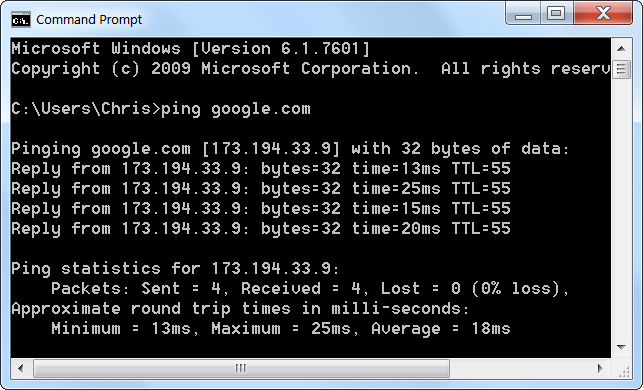
 ping google.com .  
สิ่งแรกที่เราควรทำ เมื่อการเชื่อมต่ออินเทอร์เน็ตของเราไม่เวิร์ก
 ก็คือ การใช้คำสั่ง ping โดยอาจจะเปิดหน้าต่าง command prompt
 ด้วยคำสั่ง cmd ณ Start Button แล้วพิมพ์คำสั่ง เช่น 
ping google.com .  

This command sends several packets to the address you specify.  
We can see that everything is working fine. There’s 0% packet
 loss and the time each packet takes is fairly low.  

คำสั่ง ping จะส่ง packets (ข้อมูลในหน่วยวินาที) ไปยังเครื่องที่เป็นโฮสต์
ปลายทาง  จากภาพ จะเห็นว่า คำสั่งทำงานได้ดี  ไม่มีการสูญเสีย packet
 เลย  คือ ส่งไป 4 ได้คืน 4และใช้เวลาน้อย 13-25 (เฉลี่ย 18) มิลลิวินาที


#    #     #

Modem & Router Issues

 Sometimes our modems or routers can cause the problem
 of Internet connection. A modem is a device that communicates
 with your Internet service provider (ISP), e.g. TOT, while the 
router shares the connection among all the computers and
 other networked devices in our home network. In my case 
(and also other students' cases ) , the modem and the router
 of mine is the same device, so it is called the "modem-router".
 างครั้ง Modem หรือ Router ก็อาจจะเป็นปัญหาการเชื่อมต่ออินเทอร์
เน็ตของเราก็ได้  Modem เป็นเครื่องมือในการสื่อสารกับผู้ให้บริการ
อินเทอร์เน็ต (Internet service provider : ISP)  อาทิ  TOT 
  สำหรับRouter เป็นอุปกรณ์ที่ทำหน้าที่แชร์การเชื่อมต่อระหว่าง
คอมพิวเตอร์และอุปกรณ์ต่างๆ ในระบบโฮมเน็ตเวิร์ก 
 กรณีของบ้านครูเอง (และบ้านนักเรียนกาญจนาฯ หลายคน)
 อุปกรณ์สองอย่างนี้จะเป็นตัวเดียวกัน มันเลยถูกเรียกว่า
 "modem-router"

 Let's take a look at the modem-router. If green lights
 are flashing on it, that’s normal and indicates network traffic.
 If we see a steady, blinking orange light, that generally
 indicates the problem. 
องดูสิว่า  modem-router ของบ้านเรา  มันมีไฟสัญญาณ
เป็นสีเขียวนิ่งๆ หรือเปล่า? ถ้าใช่ ก็แสดงว่า เครือข่ายโฮมเน็ต
เวิร์กบ้านเราทำงานเป็นปกติดีไม่มีปัญหา  แต่ถ้าเราเห็นไฟ
สัญญาณเป็นสีอำพันกระพริบๆ ก็หมายความว่า 
โฮมเน็ตเวิร์กมีปัญหาแล้ว

All Green Lights Mean Normality
สัญญาณไฟเขียวตลอดแบบนี้ แสดงว่า ทุกอย่างปกติดี


If the lights indicate that either devices are experiencing a
 problem, try unplugging them and plugging them back in. 
This is just like restarting our computer. If we still experience
 problems, we may need to perform a factory reset on your
 router (to see its manual)
 ากไฟสัญญาณของ modem-router แสดงว่า มีปัญหา 
 ขอให้เราลองดึงปลั๊กไฟของมันออก แล้วเสียบกลับเข้าไปใหม่
  ทำแบบนี้ก็ทำนองเดียวกับการที่เรา Restart คอมพิวเตอร์ใหม่นั่นแหละ 
 หากทำแล้วยังมีปัญหาอยู่  เราก็อาจจะต้องทำการรีเซ็ตอุปกรณ์นี้ใหม่
 (ดูคู่มือก่อน) ให้กลับไปเป็นค่าที่ตั้งมาจากโรงงาน

#    #     #

Our Classroom102

What is about the problem when we are in the classroom?
 Because the IPaddress conflict can be occurred  anytime,
 so any computer in the classroom102 can be kicked off
 easily by the gateway computer of the Media Center which
 we have to lean on.
ปัญหาการเชื่อมต่ออินเทอร์เน็ตในห้องเรียนเป็นแบบไหน?
 ก็เพราะปัญหารหัสไอพีของเครื่องขัดแย้งกัน (IPaddress conflict)
 สามารถเกิดขึ้นได้ตลอดเวลา  ดังนั้นคอมพิวเตอร์ในห้องเรียน102
 ก็มีสิทธิ์จะถูกดีดออกนอกระบบได้ไม่ยากจากเครื่องเกตเวย์ของศูนย์
สื่อที่เราต้องพึ่งพาในการเชื่อมต่ออินเทอร์เน็ตนั่นเอง
  
Yes, we cannot connect to the Net directly but always request 
Internet sharing with the server computer of School Media
 Center through the local area network.
ใช่เลย  เราไม่ และไม่อาจเชื่อมต่ออินเทอร์เน็ตโดยตรงได้ 
นอกจากต้องพึ่งพาเครื่องคอมพิวเตอร์แม่ข่ายของศูนย์สื่อของโรงเรียน
  (the server computer of School Media Center) 
 ผ่านระบบเครือข่ายแลน

There are variety kinds of computer in the classroom102, both old and
 new, big-name and no-name, useable and unusable 

คอมพิวเตอร์ในห้องเรียน 102 มีหลายจำพวก ทั้งเก่าทั้งใหม่
 ทั้งมียี่ห้อและไม่มียี่ห้อ  ที่ใช้ได้ก็มี ที่ใช้ไม่ได้ก็มี


Because any student can log on any computer in our classroom
 with the administrative account, so he has the full permissions
 to change/config anything about the network, then any problem
 can be occurred anytime.
เป็นเพราะนักเรียนสามารถจะล็อกออนเข้าใช้งานคอมพิวเตอร์ด้วย
แอ็คเคาท์ของผู้ดูและระบบของเครื่องคอมพิวเตอร์นั้นๆ
 (the administrative account)  ก็เลยมีสิทธิ์เต็มร้อยที่จะเข้า
ไปปรับค่าต่างๆ ของระบบเครือข่ายของเครื่อง 
 ปัญหาก็อาจจะเกิดขึ้นได้ตลอดเวลา

What/How About Our Home

 Network is?


I have known from students of my computer classes that
 the Internet connection at their homes is of TOT provider.
 Yes, my internet service provider (ISP) is TOT too. 
What/how is my home network?  The modem-router is
 the main device of the network because it plays many
 roles as of the followings : -
   1) to simulate itself like a server computer
   2) to act as a hub/switch of the wired connection
   3) to be an access point sending packets of the wireless
 connection
   4) to play as an ADSL modem connecting Internet
   5) to be a router managing the how-to connect to other devices

รูทราบจากนักเรียนหลายคนที่เรียนวิชาคอมพิวเตอร์กับครูว่า
 ที่บ้านของพวกเขามีการเชื่อมต่ออินเทอร์เน็ตผ่านผู้ให้บริการ
อินเทอร์เน็ต ทศท.(TOT) ซึ่งที่บ้านครูก็ใช้บริการของ
 ทศท.เหมือนกัน  แล้วระบบเครือข่ายที่บ้านเราจะเป็นแบบไหน? 
 อุปกรณ์หลักก็คือ โมเด็ม-เราเตอร์ (modem-router)
 ซึ่งอุปกรณ์นี้จะทำหน้าที่หลายบทบาทด้วยกัน คือ
   1) จำลองตัวเองเป็น server computer
   2) เป็น hub/switch ของการเชื่อมต่อแบบใช้สาย
   3) เป็น access point ทำหน้าที่ส่งแพ็คเก็ตส์ในระบบ
เครือข่ายไร้สาย
   4) เป็น ADSL modem เชื่อมต่อ Internet
   5) เป็น router บริหารจัดการเชื่อมต่อกับอุปกรณ์/คอมพิวเตอร์อื่น
ในเครือข่าย

Be sure, most of our home network is hybrid. 
One is wired while another is  wireless. Although
 a home network is not complex, but its system
 is so smart and its Internet connection is so clever
 with the ADSL technology. The superstar is a
 "modem-router", the genius device.
โฮมเน็ตเวิร์กที่บ้านส่วนใหญ่เป็นไฮบริด คือ ผสมกันทั้งแบบมีสาย
 (wired) และแบบไร้สาย (wireless)  แม้ว่าระบบโฮมเน็ตเวิร์ก
อาจจะดูไม่ซับซ้อนอะไรมาก  แต่ระบบเครือข่ายนี้ก็ไม่ไช่ธรรมดา
 การเชื่อมต่ออินเทอร์เน็ตก็ทำได้ดีด้วยเทคโนโลยี ADSL และ
แน่นอนว่า อุปกรณ์อัจฉริยะของระบบก็คือ "modem-router" นั่นเอง
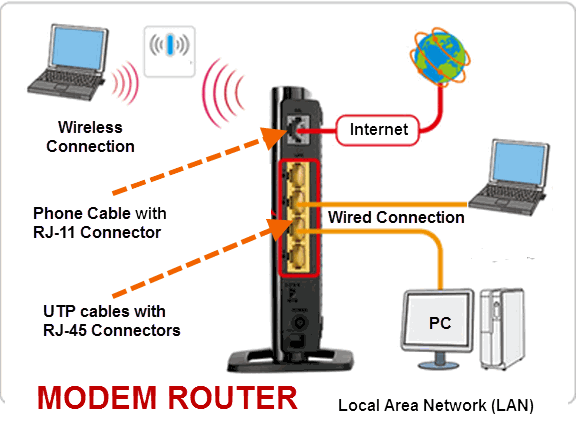
The composition of any home network 
(e.g. home internet connection of students)


UTP :  Unshielded Twisted Pair cables are so common in any
 computer rooms  e.g. classroom102 of our school. The UTP 
cable is caped with a connector which is called RJ-45. The
 RJ-45 connector will be inserted into the LAN port of any
 Ethernet card/router/switch/hub. (The RJ-11 connector of 
the phone line is smaller than RJ-45).
สายเคเบิลแบบยูทีพี (UTP) หรือสายคู่บิดเกลียวไม่หุ้มฉนวน
 (Unshielded Twisted Pair cables) จะพบได้ทั่วๆ ไปในห้องคอมพิวเตอร์
 อาทิ ห้องเรียนคอมพ์102 ในโรงเรียนของเรา  UTP จะถูกเข้าหัวด้วยหัวต่อ
 หรือคอนเน็กเตอร์ (Connector) ที่เรียกว่า RJ-45  ซึ่งหัวต่อนี้จะถูกเสียบไว้
ที่ช่องเสียสายแลน หรือแลนพอร์ต (LAN port)   เราเตอร์ สวิตช์ หรือฮับ  
(ขณะที่หัวต่อ RJ-11 ของสายสัญญาณโทรศัพท์จะมีลักษณะเหมือนกัน
 แต่มีขนาดเล็กกว่า) 

 What is ADSL? (www.wikipedia.org) : It is "Asymmetric
 Digital Subscriber Line" technology. This is a data
 communications technology that enables faster data
 transmission over copper telephone lines than a conventional
 modem can provide. (Modem is a device that manages the joint
 communication between the phone and the computer.)
ADSL คืออะไร? (www.wikipedia.org สารนุกรมเสรี) อธิบายว่า
 "Asymmetric Digital Subscriber Line" technology.
  เป็นเทคโนโลยีโทรคมนาคมที่ทำให้การส่งข้อมูลผ่านสายโทรศัพท์
ที่ปกติจะเป็นสายทองแดงนั้น ทำได้ดีมีประสิทธิภาพมากกว่า
 การใช้โมเด็มธรรมดา (Modem เป็นอุปกรณ์ที่จะทำหน้าที่บริหาร
จัดการสัญญาณจากโทรศัพท์และสัญญาณจาคอมพิวเตอร์ให้มา
ทำงานร่วมกันได้)

Another one I would like to refer to is "protocol".
 What is it? A protocol is a system of digital message
 formats and rules for exchanging those messages in
 or between computing systems and in 
telecommunications. And in our network we use
 the TCP/IP (comes from "Transmission Control
 Protocol and Internet Protocol). Now Thailand uses
 IPv4 protocol, but Thai government by Prime Minister
 Yingluck  Shinawatra is going to change the Internet
 protocol of the country with another version, IPv6
 protocol, which has more capacity and efficiency
 of transmission. 
 ละมีอีกเรื่องที่ครูอยากจะพูดถึงก็คือ "โปรโตคอล"
 มันคืออะไร?  ถ้่าจะว่าไปนะ คำๆ นี้ มันเป็นภาษาที่ใช้ใน
วงการฑูตเขา คือกรณีที่ต้องมีการติดต่อสื่อสารกันระหว่าง
พวกฑูตของประเทศต่างๆ เขาก็จะต้องมีวิธีการ มาตรฐาน
 ระบบระเบียบต่างๆ ที่เข้าใจตรงกัน และเขาเรียกว่า protocol
 ทางวงการคอมพิวเตอร์ก็ไปขอยืมคำศัพท์ของเขามาใช้บ้าง 
 โปรโตคอลของเครือข่ายคอมพิวเตอร์ (www.wikipedia.org) 
ก็คือ ระบบของรูปแบบข่าว สารเชิงดิจิตอลและกติกา
 ของการแลกเปลี่ยนกันระหว่างระบบคอมพิวเตอร์และ
โทรคมนาคม  ซึ่งทุกวันนี้ โปรโตคอลที่เราใช้ในเครือข่ายนั้น
 คือ ทีซีพี/ไอพี (โปรโตคอลควบคุมการส่งข้อมูล และอินเทอร์เน็ต
โปรโตคอล)  และ ตอน นี้รัฐบาลไทย ภายใต้การนำของ
 ฯพณฯ ยิ่งลักษณ์ ชินวัตร  ก็กำลังปรับเปลี่ยนอินเทอร์เน็ต
โปรโตคอลของประเทศเรา ที่ขณะนี้เป็นเวอร์ชัน 4 ให้เป็นเวอร์ชั่น 6 
 เพื่อรองรับปริมาณของเครือข่าย และประสิทธิภาพที่ขยายเพิ่มขึ้น

Because each computer of the network has its own unique 
"IP-address", what/how is it? As I have just told you 
(see, first paragraph) that the modem-router simulates
 itself like a server computer, sure its IPaddress must
 be static, e.g. (IPv4) 192.168.2.1, 192.168.1.1, 192.168.0.1
 etc. , on the other hand it lets the other connected computer
 the dynamic/automatic IPaddress. Yes, the modem-router
 of the home network is the gateway to Internet.
พราะเครื่องคอมพิวเตอร์แต่ฃะเครื่องในระบบเครือข่าย ต่างก็มีรหัสไอพี
 (IP-address) เฉพาะตัวไม่ซ้ำกัน  เหตุไฉน/อย่างไร?  ก็ตามที่ึรูได้กล่าว
ไปแล้วว่า  modem-router จะจำลองตัวมันเองเป็นเสมือน server computer
  แน่นอนว่า ตัวมันเองก็จะต้องมีรหัสไอพีที่แน่นอนตายตัว อาทิ
 (ถ้าดูตาม IPv4)  192.168.2.1, 192.168.1.1, 192.168.0.1 ประมาณนี้
  ในอีกทางหนึ่งมันก็ยอมให้เครื่องอื่นๆ ที่เป็นลูกข่าย/ลูกน้อง
 ที่มาเชื่อม่อเครือข่ายกับมันมีรหัสไอพีแบบอัตโนมัติ  ส่วนจะเป็นอะไร
นั้นก็แล้วแต่มันจะจัดให้  แต่ก็มักจะเป็นรหัสที่ต่อเนื่องกับตัวมันนั่นแหละ 
 อาทิ 192.168.2.3 เป็นต้น เพราะตัวมันเองเป็นเครื่องเกตเวย์  

Teacher's home network PC/Modem-router IPaddress Configuration


I use the "IPCONFIG" command to see what/how my home
 PC/modem-router IPaddressconfiguration by typing the 
command at the command line of Windows and what I knows
 are the followings
... 192.168.2.1  is the IPaddress (IPv4) of my modem-router,
 Belkin brand.
... 192.168.2.3  is the IPaddress (IPv4) of my PC, configured by the 
modem-rounter 
รูได้ใช้คำสั่ง ณ คอมมานด์ไลน์ของ Windows7 ว่า  IPCONFIG 
 เพื่อต้องการทราบว่า  รหัสไอพีของเครื่องคอมพิวเตอร์ และโมเด็ม-เราเตอร์
ที่บ้่านมีค่าอะไร ก็พบว่า
... 192.168.2.1  เป็นรหัส IPaddress (IPv4) ของ modem-router, ยี่ห้อ Belkin
... 192.168.2.3  เป็นรหัส IPaddress (IPv4) ของเครื่องคอมพิวเตอร์ ที่จัดให้/
กำหนดให้โดย modem-rounter

Yes, each other computer in the network can never be configured
 with a static IPaddress because the modem-router as the server
 PC/the gateway PC cannot share Internet connection anyway.
ใช่เลย คอมพิวเตอร์เครื่องอื่นๆ ในระบบโฮมเน็ตเวิร์ก มิอาจมีค่ารหัสไอพี
แบบคงตัวได้  เพราะมันจะต้องถูกตั้งเป็นอัตโนมัติไว้ให้  modem-router 
ในฐานะเป็น server PC/the gateway PC เป็นตัวกำหนด  ถ้าไม่เช่นนั้น
  มันจะไม่สามารถแชร์การเชื่อมต่ออินเทอร์เน็ตมาให้ได้นั่นเอง